



Native-quality visuals with high frame rates and low latency for a smooth experience.

Massive high-speed nodes | Consistently available | One-click quick connect
We have more than 10,000 nodes in 184 countries and regions, along with globally optimized high-speed routes

A global high-speed network built for streaming, with high-speed video channels that unlock global content—no more buffering.
Download now →Esports-grade network optimization that eliminates high ping for a silky-smooth gaming experience.
Native-quality visuals with high frame rates and low latency for a smooth experience.

Balancing higher image quality, higher frame rates, and a stable connection experience.
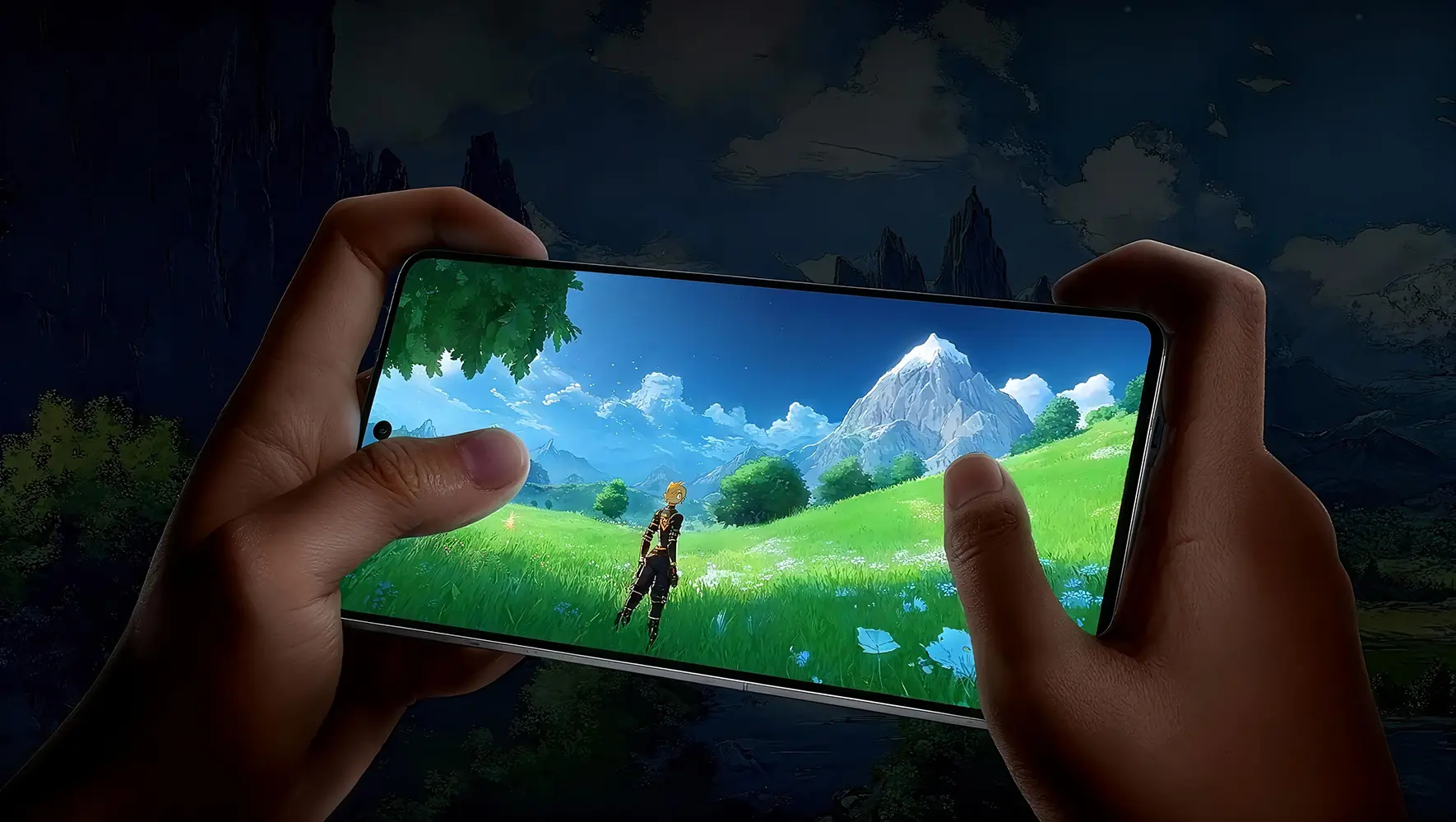
Consistently smooth, detailed, and stable, adapting to different gaming platforms.
Smart connection, device switching, and privacy settings make common features clear at a glance.

Choose the most suitable connection method based on the current environment to reduce repeated setup.

Covers common device platforms such as computers, phones, and tablets.

Protects everyday connection processes with clear security mechanisms.

Focuses on common steps so new users can get started quickly.

Provides a continuous, clear experience across different network environments.
Get started quickly with smart route selection and one-click connection; when you need to switch devices, simply choose the corresponding client.
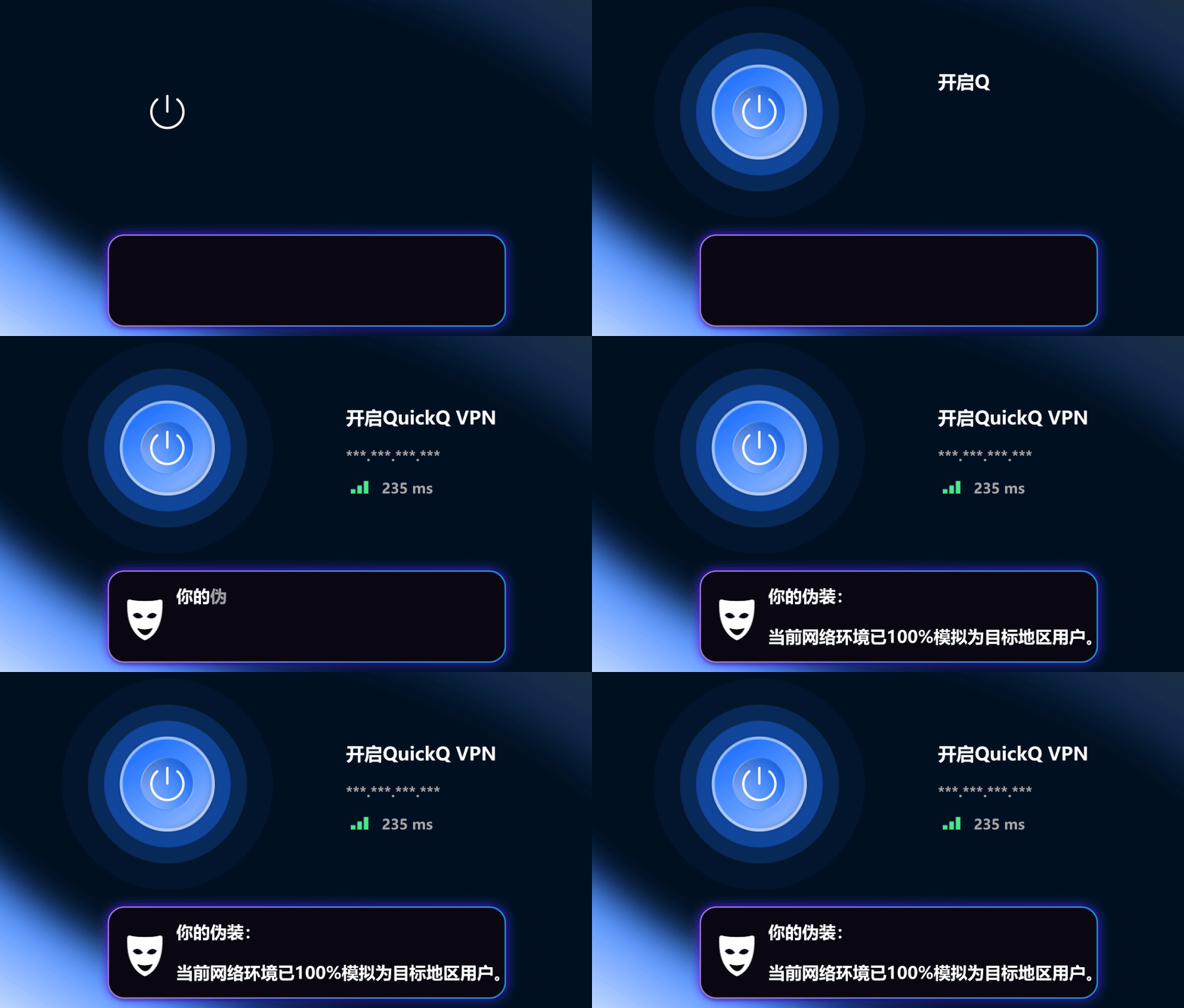
Enjoy a familiar connection experience on computers, phones, and tablets by choosing the client that matches your device's system.
Frequently asked questions about device selection, downloading, installation, and getting started.
Supports common platforms including Windows, Android, iOS, macOS, and Linux. Please choose the version suitable for your device.
Open the downloaded installer and follow the wizard to complete the process; for mobile devices, install according to the system prompts.
Open the client, follow the in-app prompts to complete the initial setup, select a server, and you can connect.
Go to the download center on this site and select the version that matches your current device system.
Go to the download center and select the client and installation entry according to your device system.
Open Download CenterQuickQ VPN offers a consistent experience across desktop and mobile. No complex configuration is needed—just open the app to connect to high-speed servers, ideal for daily browsing, remote work, and streaming.
Automatically matches low-latency routes based on network conditions, reducing manual switching and waiting.
The same account can be used on multiple devices, keeping settings and connection status consistent.
Reduces background resource usage, suitable for long-running sessions or low-performance devices.
Usually not. After installation and login, the app will automatically guide you to select a recommended node. If your network environment is special, you can re-detect the best route in Settings.
You can try switching to a smart node or changing the connection mode. Closing other bandwidth-heavy applications can also help achieve more stable speed performance.


 Windows
 Android
 iPhone / iPad
 macOS
 Linux